

Editor’s note: for additional thoughts on this subject see Fast Summaries Revisited and Fast Summaries Re-revisited.

He called the technique Fast Summaries, and I came to employ it extensively in my own solutions. Eventually I built a demo file, kf-fast-summary, showcasing one application of this technique, and taking advantage of some of FileMaker’s newer capabilities. I feel that Fast Summaries deserve wider recognition, and my next article will feature them as one component of a somewhat complex procedure, so this seems a good time to dust off the old demo, and examine the technique in some detail.
The demo consists of a simple flat file showing donors and donations.
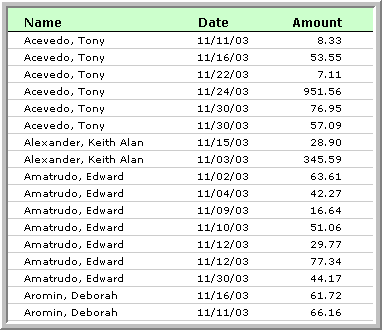
So, how do we get from that, to this?
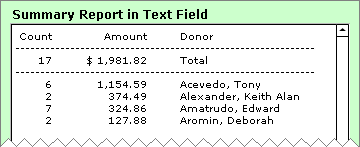
The basic idea is to loop through the found set, using the GetSummary function to grab summary info (in this case, donation count and dollar amount) for each individual. We don’t need to visit every record, just the first one for each unique donor. This ability to skip lightly through the found set is part of what makes the technique fast.
So how do we identify the first record for each donor?
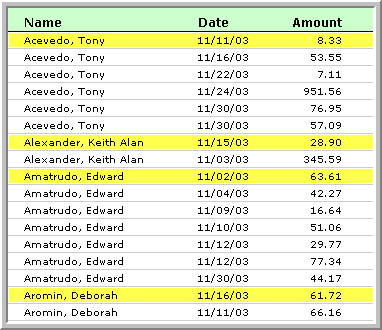
Given that the first record in the found set is guaranteed to be a valid starting point, a better question would be, “How do I decide what record to go to next?”
Deciding where to go next is relatively simple, assuming that a) your found set is sorted by donor, and b) you’re sitting on the first record for a given donor. If both these assumptions are true, you simply add the current record number to the count of donations for the current donor. For example, if you are sitting on record #1, and there are six donations for that donor, then the next record you will be visiting is record #7.
How do you count the records for the current donor? First you define a summary field to count the records, like so:

(You need to count a field that is guaranteed to contain a value for every record; the primary key is generally a safe bet. A calculated constant field would be another.)
Once you have a summary count field, you can use the GetSummary function to determine the number of records in the current group, as per the first Set Variable step below (this is a portion of the “Process Records” script).
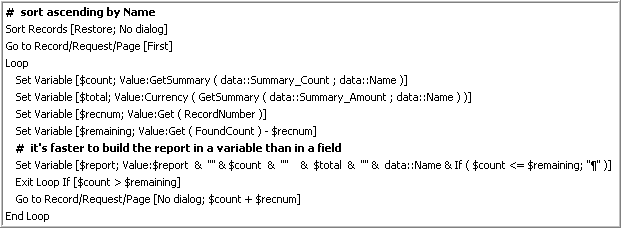
Another thing that makes this technique blazingly fast is the use of variables. There is only one Set Field step, and that happens at the very end, after all the summary data has been assembled in the $report variable.
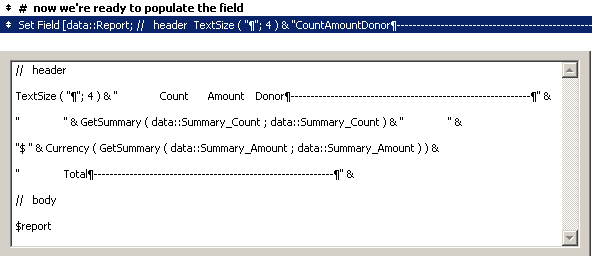
A third thing that makes this technique fast is a Freeze Window step, which is at the very beginning of the Process Records script. In some cases temporarily switching to form view while a loop runs can yield a major performance boost as well, but I did not find that to be the case in this particular demo.
Once you have this technique under your belt, you will find many applications for it, so I encourage you to spend some time with the demo file. You’ll be glad you did.