

Update 20 Aug 2012: Dr. Noda has updated the demo files to include Rob Russell’s clever fill graphic trick (as per the responses following the article). Thank you Rob and Dr. Noda.
As promised last time, today we’re going to look at a technique from Dr. Osamu Noda, which uses FM 12’s ExecuteSQL to create what appears to be a value list when in fact there are no value lists defined at all.
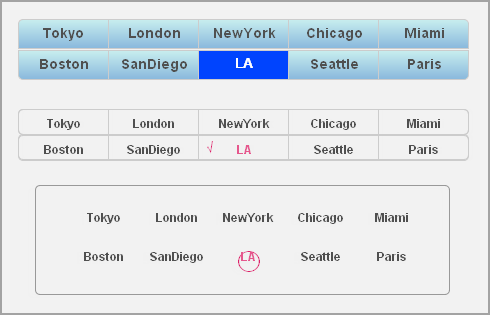
This technique, like some of the others we’ve seen recently, is decidedly esoteric, but it shows some clever outside-the-box thinking, and I appreciate Dr. Noda taking the time to share the demo (ValueListWithoutDefinition-RR-Edition) and write up his notes. One of the things I particularly like about this technique is that it allows the order of the value list items to be customized, even though the values come from a table.

The zip file contains two versions of the demo… the second being optimized for performance.
Here are Dr. Noda’s notes:
1. Get the data of valueList by using ExecuteSQL function and extend the data into a repetitive field directly.
[FIELD DEFINITION] GetValue(ExecuteSQL(……….);Get(CalculationRepetitionNumber))
2. Make the repetitive field seem like checkboxes or radio buttons using conditional formatting
3. Make a script that registers which cell of the repetitive field is clicked
Using this technique, you can get the flexibility of the design and flexible sort.
4. How to restrict the members of the value list to show
I use WHERE clause to filter the items to show in the ExecuteSQL function
5. Speed problem (if you have)
If you use the ExecuteSQL function in the onlayoutEnter trigger script and put the result set into the global variable ($$resultset), it works faster (maybe).
[repeating field definition (for value list)]
GetValue($$resultset;Get(CalculationRepetitionNumber))
6. The design of value selection
There are so many variations of the value selection style in the world of the web. I think Filemaker also should have the ways to do that.
So this technique comes from that. I wrote “Make the repetitive field seem like checkboxes or radio buttons…”, but you don’t have to do it necessarily. To point out the selected item, you just turn the color of the text or background by using conditional formatting.
7. Tip: how to look like a checkbox
Prepare 2 repeating fields, one for the value to show, and another for the “check mark”. Then put one over another in the layout mode.
Using conditional formatting, you can turn on/off check mark.
8. Another way: webviewer
We can use a webviewer as a selection tool. Pass the resultset of ExecuteSQL function to the webviewer. In the webviewer, many techniques of the web to show the value list are available. We can use radio buttons, check boxes, dropdown list, accordion panel, etc.
In Filemaker 12 we can use fmp:// technique. Now webviewer is interactive. There are great possibilities in the Filemaker – Webviewer interaction, I believe.