

About the author: Beverly Voth has been in the Claris FileMaker community many years. In addition to FileMaker Pro and its integrated products, she is a Full Stack Web developer & SQL database administrator. The only recipient of the FileMaker Excellence Award for Outstanding Contribution to the FileMaker Web Publishing Community (DevCon 2003), she’s been advocating Claris FileMaker and web since they could work together.
This article covers more Views, a little errata from past articles (Parts 1, 2, & 3), and where we go from here. This is the final article of the planned four. But if something really inspiring materializes, there may be followup article(s). Some famous “trilogies” (films and books, especially) have gotten additional content, so why not?
Welcome back! The Spreadsheet View and the Dashboard View are not the only features of Claris Studio. I chose them to discuss first because the Spreadsheet has more information about the tables and fields. That information may be helpful on all Views. But we have other Views: anonymous Form submission, a List-Detail View (suitable for searching, adding, editing), a Kanban View (just another way to present the data & edit it), and some new ones since the last article. Remember that Dashboards are created from the Spreadsheet View only, so they do not appear on this graphic:
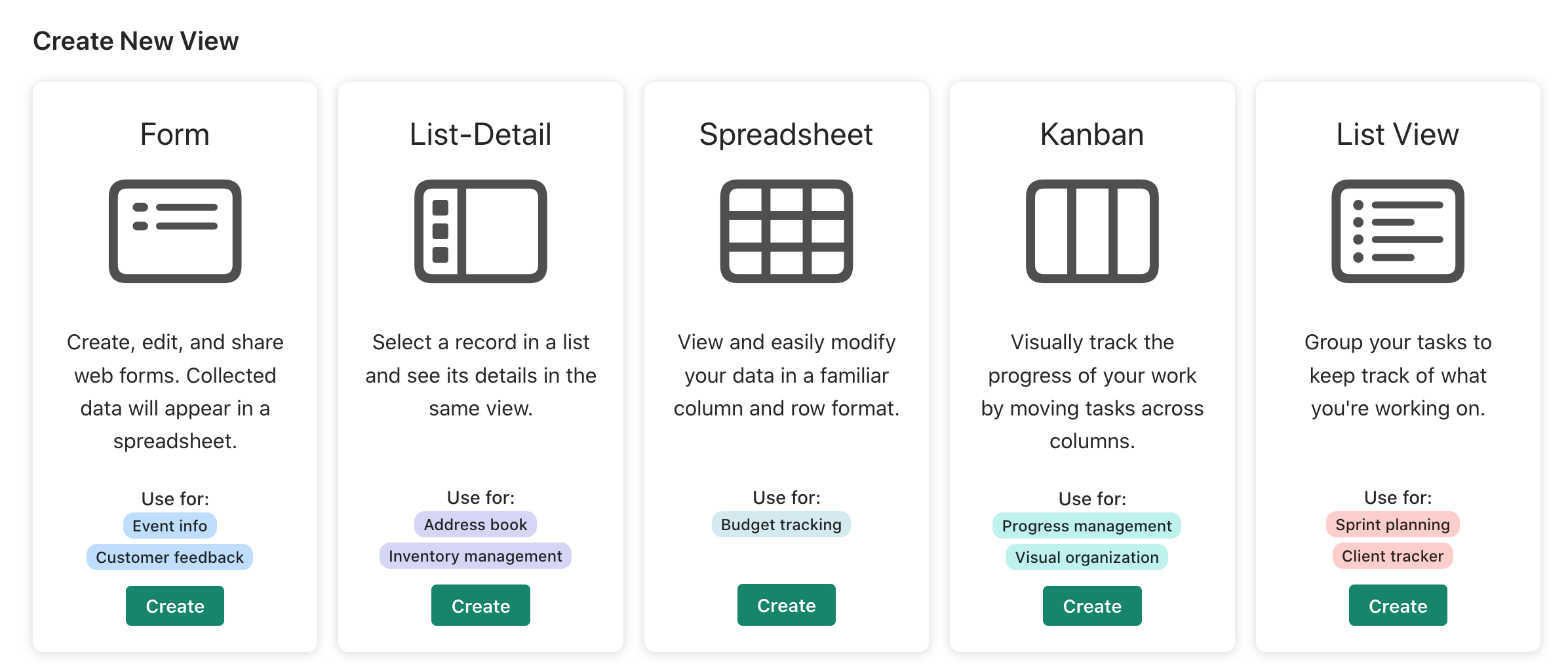
We can start with one of these views to create the “table” or we can start with existing data (from a Spreadsheet setup or migrated from Claris Pro). Let’s get started with a review of the Forms.
Claris Studio Forms
When you create the Form View in Claris Studio, you may Share it. You are given a URL to copy and pass along to anyone you wish. They need not use the Claris ID (or any sort of authentication) to fill out the form and send the data to you. This is the only view that allows anonymous submission at this time. You may stop sharing at any time and the link is permanent, unless you change it.
When you create a List-Detail View, Kanban View, or one of the newest Views, however, they cannot be shared for anonymous data entry and require a team member to login with their Claris ID. These views are added to Hubs that can have people invited as Team Managers or Team Members. They can only see those views where they have been invited.
Warning: data is collected and stored for Claris Studio. Any data collected with these Views can be seen in Claris Pro, if you add the table to your Relationship Graph. Do not ask for PII (Personally Identifiable Information) or anything that would violate the GDPR (General Data Protection Regulation), if you should not collect it. You are responsible for making sure the data is used responsibly regardless of “anonymous submission” or by login with Claris ID. You may also edit the data (records & fields) in Claris Studio, should you not wish to do so in Claris Pro.
Form Views revisited
Form Views can be used to create fields. If you create a new Form, remember the default fields will be created for you. You may delete or rename these fields. Creating new fields by using the Add Object dialog will give you a generic type that can be edited: the “label”, the “place holder text”, and the field name. Place holder text is edited by clicking into the “Enter text here” box and changing the text. Remember that is you have “default values” on any field, these will be automatically entered into the field box and shown instead of the place holder text.


You may start from a Spreadsheet or other View where the Table has already been created. Just create the Form based on that table. On the Views page, you can click the “+” (Create from This View) to make a new Form View. Not all Views have this option. Existing fields may be automatically added to the new Form. You may edit any Form as needed with fields ready to drag onto the form. You may use the Add Object to make new fields, even if you use Migrated tables.
Reminder: refresh your views in Claris Studio or sync the shadow table in Claris Pro if you make any field changes in Claris Studio.
Form Views have gotten some enhancements:
- Claris Studio: Enhancements to working with fields
- conditionally hide/view images, text objects, & field objects!
- conditionally jump pages
Kanban revisited
The first article had an overview of the Kanban View. There have been a few changes since then, of course! In the Claris Studio Help Center, there may be updates on the What’s new page. And you can get some great details from David Head’s article, Claris Studio: Kanban View.
Remember:
- If you use an existing table and create a Kanban View, it needs a “drop-down” field (option list) to be used for the Categories (grouping cards on the card columns).
- When you click on a card to edit, you get the same Edit Record popover dialog as in the Spreadsheet row edit. You can easily tab though these fields to edit content.
- Not all fields may be seen on the card, but data will show in any View using the same table
- You may find some changes on features/setting in the menus (Board Setting, Color, & Customize Card), so check them out too.

TIP: Go to the What’s new page and in your browser search for ‘kanban’. Don’t use the search box on the page. Your browser can highlight where any word appears on the page. You may need to “Expand all” with the bullet-list-icon at the top of the page, before searching this way.
List-Detail Views
Somewhat similar to the List-Detail in Claris Pro, the “list” is all the found records (use Filter records to limit the list) and you see a few fields in the first column. You may click the gear icon to change what is shown in the List and clicking any record takes you to the Detail. The Detail is somewhat like the Form View, although it is not an anonymous data collection and the Action Menu is available to show/hide fields conditionally. There is no “flow” like the Forms – no pages – so there is no Next, Previous, or Submit buttons. You also don’t get the conditional actions on “pages” like you do with Form Views.
TIP: check this view in Preview to see what it looks like on the mobile device!
New Views (or updates)


You’ll see another set of views ready-to-use together for Project Management or as samples to revise for your own needs. Check out the “A gift from Santa: project management starter views” in the What’s new. This new gift even gets its own entry in the Claris Studio Help Center: Project management with Claris Studio starter views. These samples are handy for learning about some of the other views, as well and how they might integrate together.
Dashboard & Spreadsheet enhancements
The November 30, 2022 update has this section: “You’re in the driver’s seat with these new dashboard features”. Check out the new Spreadsheet object for Dashboards! Although it doesn’t mimic all the Spreadsheet View features, it does allow data editing to directly change your charts (there is a new chart type!).
Spreadsheets also get some new goodies in the January 18, 2023 update of What’s new.
Sidebars & other new features
- All Views have the Sidebar icon. When you click it, you see the Views that are linked by using the same table (if any).
- To the rightmost of the View name is an icon that allows you to click and quickly navigate among those views.
- You also see all the fields in that table with an icon showing the type of field. Most Views allow you to drag from this list to the form-type views. Whatever may be allowed with the Add Object for any view, can be dragged from the Fields listed!
- Field changes (name, additions, deletions) will show for ALL Views using the same table. You may need to refresh a View if you make changes to the fields in the Sidebar.
Markdown


You may use Markdown for “layout text” (called Text Block in the Add Object menu). This is the same Markdown used by many text editors. It’s a quick way to have “formatted” text without too much fuss. In Claris Studio, you may even be able to use common short-cuts for things like bold or italic text formatting. Unlike using a GUI edit box with handy clickable icons, you must remember the symbols or characters used to “markdown” your text. Not all Markdown is the same for each application, so the following information may or may not be usable for Claris Studio:
- https://www.markdownguide.org/
- https://www.markdownguide.org/basic-syntax/
- https://www.markdownguide.org/cheat-sheet/
- https://www.w3schools.io/file/markdown-introduction/


TIP: use markdown on text blocks on your Form Confirmation page to create rich content, including hyperlinks to other web pages.
Errata (what changed?)
…because things change rapidly around here! From Part 1:
Disclaimer: This platform may have rapid changes and this article may not be current after it is published. Always check for the latest information & videos. Be sure to check the comments on all previous articles:
Part 1
- screenshots that may not be as what you see now
- possibly some links, so make a comment at the bottom and we will get you new information
- more views! see some of them reviewed, above
- what view(s) get shared anonymously (only the Form View)
- more objects & fields in some views!
- coming soon: see Claris Studio Views inside Claris Pro! (see the 25 JAN 2023 Claris Update Webinar, link below)
Part 2
- more of what gets shown after conversion or migration (fields, for example)
- the Comparison may change as some features are added back into Claris Platform (see the 25 JAN 2023 Claris Update Webinar, link below)
- the Conversion still limited Accounts, at this time. Be cautious of using any email address in the .fmp12 file as authentication that may already be Claris IDs after conversion.
- the Creation of new .claris files has a new option to automatically link to Claris Studio tables (use “Blank” if you don’t want to show shadow tables):


- the Migration (Claris Studio table from Migrated Claris Pro table) – calculation & summary fields are no longer a barrier to migration. They get changed into “shadow fields” and remain in the Claris Pro table occurrence.
- Claris Pro container fields vs. Claris Studio attachments – as of this article there is no correlation (or conversion/migration or viewing of) these from one to the other.
Part 3
- new column/object types, such as the column (not a field) for comments
- new features for some columns/fields to configure or edit
- new features for column options
- new cell features (fills down or up) – it will over-write if the cell already has data
- remember that drop-down objects can be used as categories in Kanban; and other new features
- check out new options for columns, rows, and cells
Whats new and not covered in these articles?
Probably a lot of detail that you can discover in other links (below) and/or with just exploring the different views.
- Hubs changes
- Teams changes
What’s next?
Important links (bookmark these)
- Claris Studio Help Center
- What’s new
- Claris and FileMaker Platform differences (some of these will change!)
- Convert your apps
- Getting started with Claris Server
- Create an extended Claris account
- Claris Pro Release Notes
- Claris Community forum topics
- Trending Now, Claris platform resources – Here you will find links to training and other articles.
- Claris Studio
- Claris Pro
- Claris Connect
- Claris Pro Help includes FileMaker Pro and both may have specific pages.
- Tech specs (Claris Platform)
- Product Documentation Center (some of the same links as above, but more)
- Claris Studio YouTube Playlist
- Purchase
- Claris Free Tier License – The free version of the new Claris platform is coming soon (watch the 25 Jan 2023 Claris Update video, linked above). To be among the first developers notified when it’s available, sign up here.
Final thoughts: As always make comments to this article. But remember that things rapidly change, so not all the information may be current! And if the muse speaks, there may be more articles.