
Introduction
From time to time FileMaker developers are tasked with generating Excel spreadsheet output. There are a variety of ways to accomplish this, in some cases via native FileMaker commands (Export, Save/Send Records), and in other cases using various workaround methods — some of which have appeared on this site in years past.
Today we’re going to look at producing spreadsheet output via LibXL, with help from a plug-in. Why bother? Several benefits immediately come to mind, including… power and flexibility, ease of implementation, and not having to add helper fields, tables, etc., to your database schema. With a plug-in you will typically do all the work at the script level, and generate feature-rich spreadsheets that otherwise would be difficult or impossible to produce from within FileMaker.

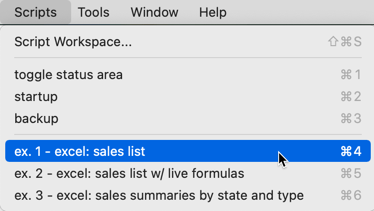
Demo file: Generating-Spreadsheets-with-LibXL.zip
(requires FM 19.5 or later)
Goya FMXL plug-in: https://goya.com.au/excel-plugin-for-filemaker
This plug-in is required for the demo to function. If unregistered it will add a trial notice banner at the top of the spreadsheet.
Note: if you are a Monkeybread user, MBS also offers an add-on plug-in for LibXL. The function calls are similar in both, and if you’re so inclined today’s demo file can be adapted to work with the MBS version. See documentation here, which can be helpful when using the Goya plug-in as well.
Structure of the Demo
The demo contains these tables…

…which are related like so…

…and here are field defs for the sales table.

Example 1: Simple List Export
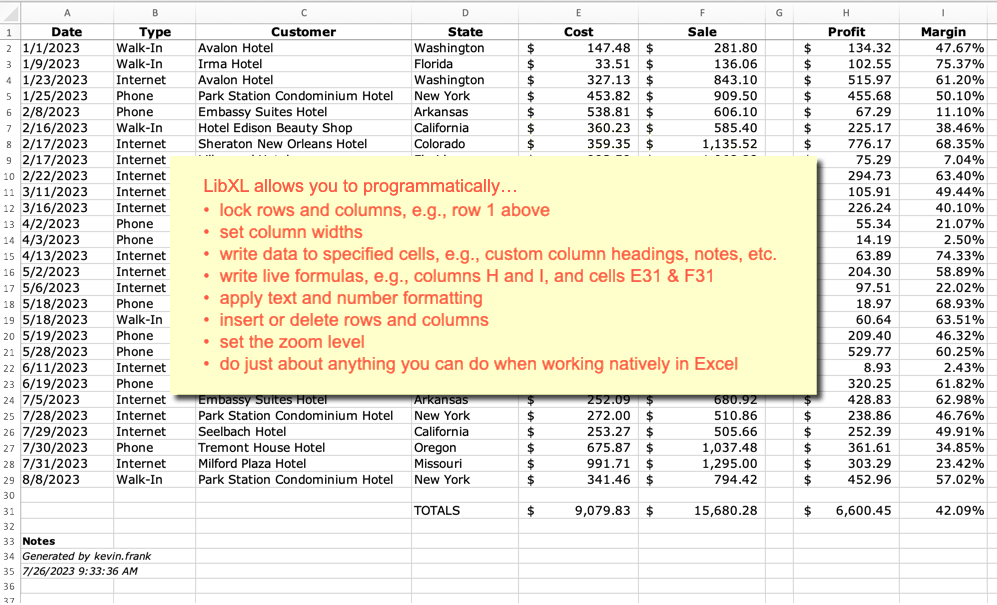
The first annoyance people typically run into when creating spreadsheets via one of the native FileMaker methods is the inability to customize the column headings, so let’s start with a bare bones example that generates a spreadsheet corresponding to a found set in Sales. In this example, our users don’t care about ID numbers and they don’t need to know that some of the data is coming from related tables. Let’s just output the fields they’re likely to care about, with human-friendly names for the column headings, by running the example 1 script.
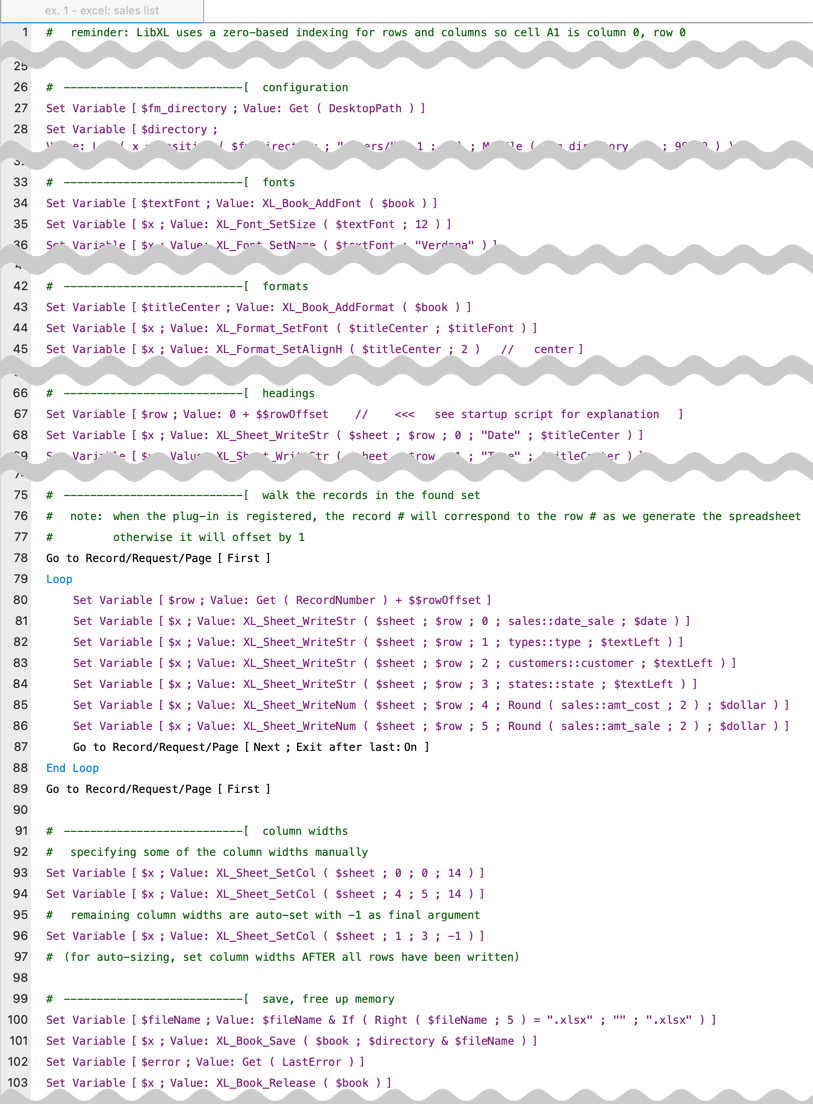
The basic concepts are shown in steps 26-75 and 91-103 below, and (with some variation) are common to all the scripts. As per the comment on line 1, LibXL uses zero-based indexing for rows and columns, so cell A1 = column 0, row 0.
The heavy lifting takes place in steps 78-89, and what we do in that section will, of course, vary depending on what we want to accomplish. In this script we simply walk the records in the found set and write the output row by row, and column by column within each row. And here is the resulting spreadsheet with data pulled from four different tables, nicely formatted and with user-friendly column headings.

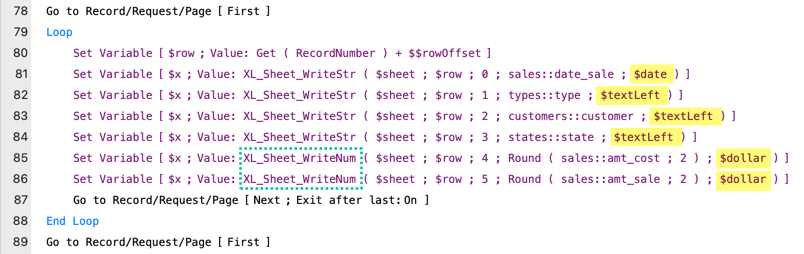
Returning for a moment to steps 78-89, here are a few observations.
- the highlighted variables represent formats defined in steps 43-63
- when writing text, use XL_Sheet_WriteStr
- when writing numbers, use XL_Sheet_WriteNum
Example 2: Enhanced Version of the Preceding

This is an expanded version of example 1. In addition to the preceding we want to freeze the top row, add some live formulas, and append notes to the bottom.

What do I mean by “live formula”? I mean that the plug-in will write the formula into the cell, e.g.,

Some points of interest:
- The top row is frozen via XL_Sheet_Split
- Formulas are written via XL_Sheet_WriteFormula
- Commented out script steps suggest additional possibilities
Example 3: Dual Summary Reports

In this final example, we want to summarize the sales data by state, and also by type, so we end up with two separate summary reports on one sheet.

This time a subscript is responsible for aggregating the data and assembling it into a JSON object…

…which will then be rendered by the main script. If the file is hosted the subscript will run via PSOS (Perform Script On Server); otherwise it will run via Perform Script.
Some points of interest:
- The heading in the first row is spread across five columns with help from XL_Sheet_SetMerge
- The top three rows are frozen
- The totals at B55 and E8 are live formulas
- The number format this time is different than in the previous two examples
- Before it was XL_k_NUMFORMAT_ACCOUNT_D2_CUR
- Here it’s XL_k_NUMFORMAT_ACCOUNT_D2
Closing Thoughts
At the risk of stating the obvious, these examples only scratch the surface of what you can do with LibXL. I encourage you to experiment with my demo, and/or investigate the demos and resources on the Goya and MBS sites.
Hi Kevin,
great presentation, thank you!
I came across your post because I had been asked to do the same job here for our theatre – budget, as always!, zero :) . So, as much as the people behind BaseElements and MBS deserve every penny for the great work they are doing, I had to find a cheaper alternative without any plugins and found this open source JavaScript library: exceljs is well documented: https://www.npmjs.com/package/exceljs and like LibXL it allows you to create perfectly styled and superflexible .XLSX files on both, OSX and Windows. The only difference to the FileMaker plugins is that all the Excel operations are scripted inside a JavaScript and not directly in FileMaker, but after a couple of hours the necessary JS coding becomes quite straightforward. A possible workflow is:
1. Select the records to be written to Excel and encapsulate them with JSON
2. Pass this JSON object/array into a webviewer containing the exceljs JavaScript code
3. Return the ExcelFile to FileMaker (my preferred option is loading the file into a container field)
4. Back in FileMaker do whatever you want with the Excel file (save it, send it, other)
Hope this might be helpful for the community.
Ciao from Milano
Farid